Adding Ascentae Support to Your GoBright Portal
This will walk you through the steps to allow Ascentae Support access to your GoBright portal.
This is used by Ascentae to commission your project, or for ad-hoc assistance with a support ticket regarding an existing portal.
Please click on each section below to go through the steps.
1. Important Information
If Ascentae is commissioning your portal, permissions must be provided by an administrator from the end-users side in order for us to access your portal. You'll provide us with a temporary login.
Full admin rights must be permitted. We'll cover this later.
It is your responsibility to grant AND revoke Ascentae access to your portal.
2. Your GoBright login Information
Whoever signed the licensing agreement with GoBright will have received an email from sales@gobright.com with the initial admin login details.
This includes:
- Email address
- Password
- Organisation code
Ascentae doesn't see your login information, so it's important you follow the next steps.
We will never ask for the original login information for your portal!
Let's get going...
3. Granting Ascentae Access
-
Log into your GoBright portal here and navigate to the Admin Centre. See step 2 for your credentials.
After you have logged into your GoBright account, head to the Admin Centre:
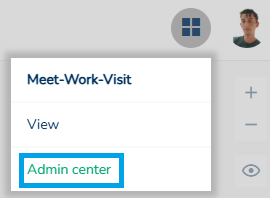
On the top navigation, head to the users section. Proceed to add a new user.
 Please use the following information:
- Name: Ascentae Support
- Integration: None (do not integrate our account)
- Email address:support@ascentae.com
- Password: Manually enter a password or use the ‘Generate password' option and make a note of it
- Phone number, NFC and Default cost centre should be ignored
- All roles should be selected under the Meet-Work-Visit and View section
We recommend using the generate password field, to create a random strong password. After you've done this, copy it to the clipboard:
 The final step on this page is the permissions (important), which is at the very bottom of the page. Please ensure step F above has been carried out.
Scroll back up to the top of the page after confirming all of the above is correct and hit save.
Looks like we're good to go. Let's move on to the next step.
4. Finding Your Org Code
To find your organisation code, head to Settings > General. This is the 2nd section on this page.
5. Submit Your Information
Email support@ascentae.com with the following information:
- Company Name & Contact Info
- Organisation Code
- Password